The Propeller Platform aims to make submitting your drone survey data as easy as possible, but if you’re new to Propeller, you might still be getting familiar with the Platform’s workflow. To help with this, we’re putting together a few how-to write-ups on our most popular data queries.
Today, we’ll cover submitting ground control and checkpoint data with your dataset. No matter what site you’re surveying, we strongly recommend using ground control to improve your survey accuracy.
But what you might not know is that you can also select some ground control points (GCPs) to use as independent data checkpoints. These don’t influence your model. They are instead used to validate accuracy, a common surveying practice.
Adding ground control and checkpoints in four ways
There are multiple ways to add in this information to your dataset in the Propeller Platform, as depicted in the image below. We’ll go over each one here.

1. Adding AeroPoints to your survey
Choose your AeroPoint flight from the list displayed in the Platform. This is sorted by date. You can use the search bar to find the one you want by location name or AeroPoint flight ID.
Then select the horizontal and vertical coordinate reference system you want your outputs in. The systems visible in the dropdowns are those compatible with the selected AeroPoint flight. This will be prefilled if there’s a default. (Should your site use a local system, that will be preset for this system.)


2. Uploading a CSV file
You can also submit GCP data as a CSV file. If you’re not working in a local system, you must select your horizontal coordinate reference system, as explained above.
Once you’ve chosen your system, you can also set a default by checking “Save this coordinate system as default for the site.”

If you need to format your GCP data as a CSV, download a template file by clicking Download CSV file template. Formatting your CSV using the template structure ensures columns are detected automatically.
Aside from the required fields of ID, easting, northing, and elevation, you can add an additional Purpose field, where you can designate which GCPs to use as checkpoints.
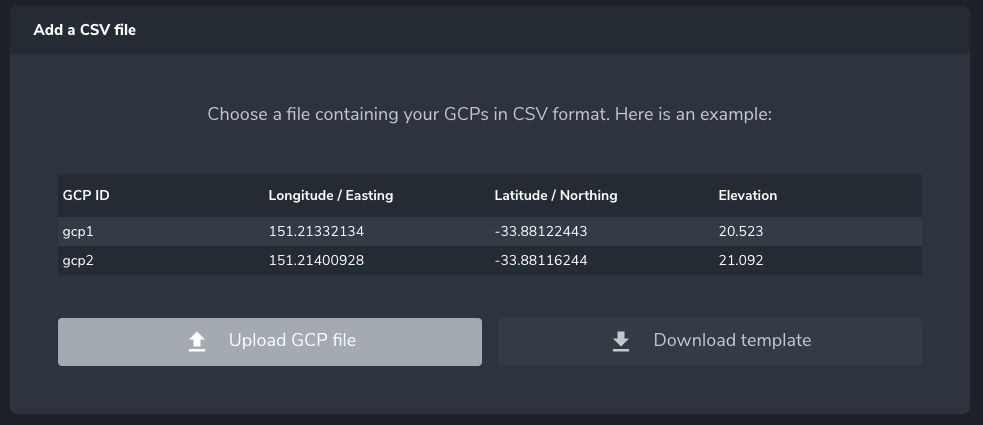
Then you simple drag and drop your CSV file onto the screen or click Upload GCP file.
Column names are auto-detected, but if this isn’t successful for everything in your file, you can manually match columns to their proper data field.

If you picked AeroPoints or configured a CSV file, a map will be displayed showing the approximate locations of GCPs. If they are outside the boundary of your photos, a warning will show and the list icon will be displayed in red, as below. These can be removed by toggling on the Remove These Points button.
3. Using both AeroPoints and a CSV file
If you’re using a combination of AeroPoints and a CSV file, you can follow the steps above for each type of file to get to this step. Once completed, you can select which points from your CSV file and/or AeroPoint flight (collapsed below) you wish to use as checkpoints, by toggling the Checkpoint radio button.

4. Using no GCPs or checkpoints
The last option is using no ground control or checkpoints whatsoever in your survey, which we highly discourage. Submitting a survey without ground control will greatly reduce the possible accuracy of your 3D site survey.
If circumstances on your site or a particular drone flight mean you have to submit your dataset without any ground control, you can click Continue to acknowledge the warning and proceed with diminished accuracy.