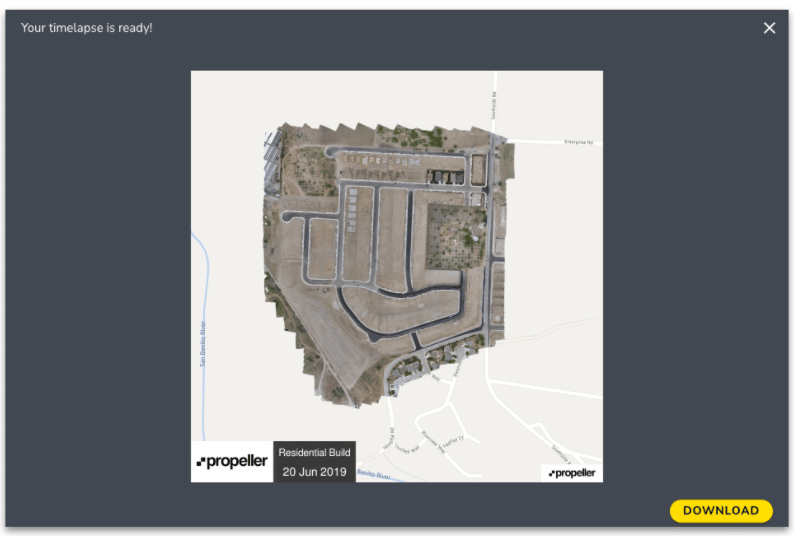
Managing site work via drone surveying continues to grow among professionals in the earthworks and civil construction industries. Today, it’s not just the tech-savvy, early adopters who are using drone data to better understand how their job sites are progressing. As a result, Propeller is often asked to provide more ways for companies to share data and collaborate visually across their departments. We listened, and heard you by launching two new features within the Propeller Platform to help you visually share your site progress: Timelapse and Fly-through.
Timelapse
Located under the Outputs tab in the Propeller Platform, Timelapse provides an easy way to capture and visualize your site work progress by capturing images to build a top-down animation of your site. You can zoom in and out of your worksite map and select the specific areas where you want to track progress. You also have the ability to select which drone surveys you want to include in your animation and how long you want it to run.
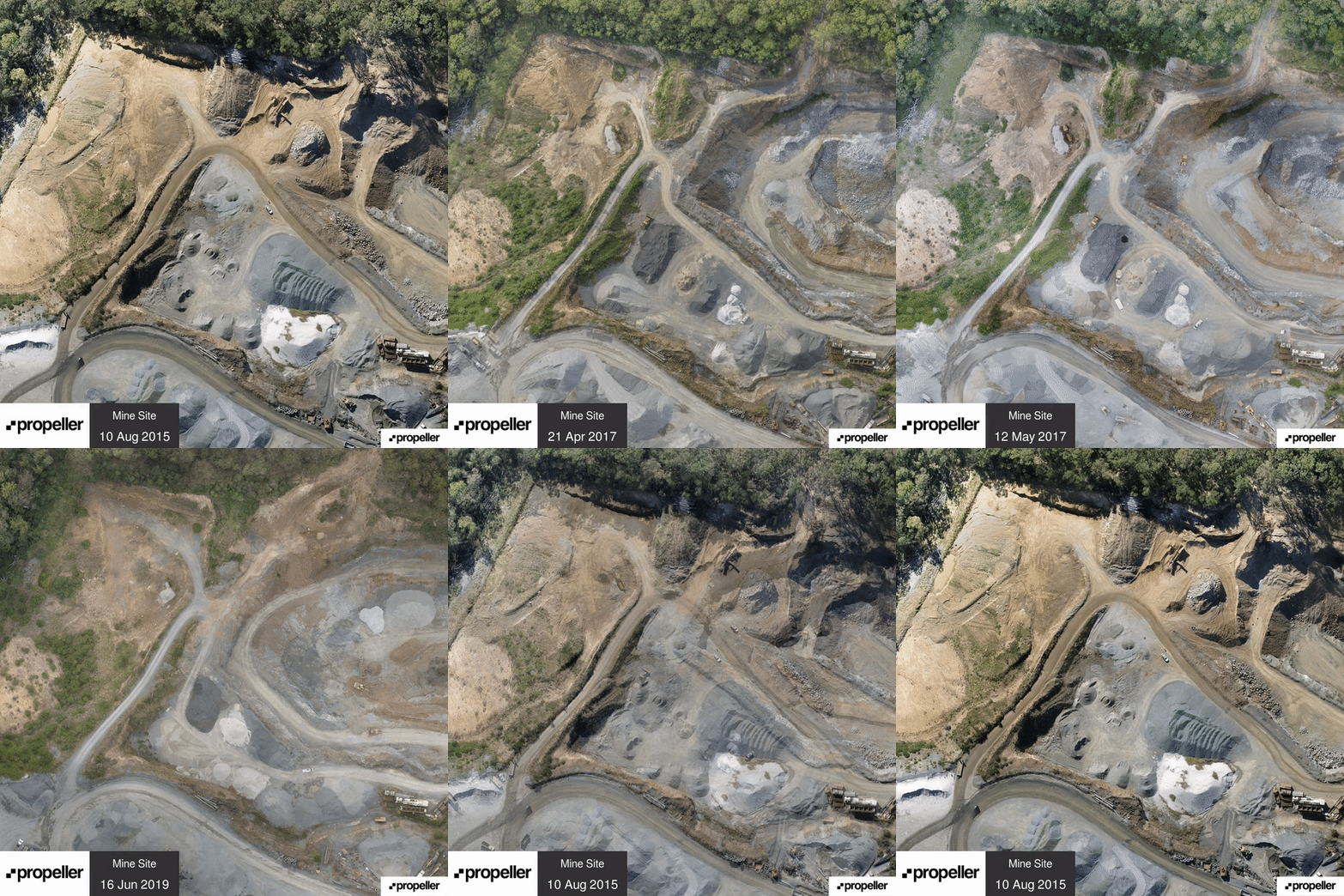
Timelapse is designed to help you quickly and easily share important updates with stakeholders on the progress of your site through short (approximately 10 to 20 seconds) and engaging video gif files.
Fly-through
Like Timelapse, Fly-through allows you to easily view specific areas of your site and track it’s progress. You can create a Fly-through video by placing view points (also known as waypoints) around your map and customizing it by zooming, panning, or changing the angle of your map to display the exact angles and site features you want to track. You can also create a Fly-through video manually by recording your screen movements, which will capture all of your interactions with your job site.

Are you an existing customer who wants to discover how to use the Timelapse and Fly-through features within the Propeller Platform? Read our Knowledge Base article and watch video to learn how.